Apps
Google Slides App
Learn how to use Google Slides with sonopto.signage for dynamic digital signage. Follow our step-by-step guide to display stunning presentations seamlessly!
-
Go to Google Slides and open the slideshow you want to show.
-
Click on File.
-
Click on Share.
-
Click on Publish to web.
-
Check Start slideshow as soon as the player loads to make the slideshow start automatically.
-
Check Restart the slideshow after the last slide to make sure the slideshow loops when it ends.
-
Click on Publish, then on OK to confirm.
-
Copy the generated link.
-
Go to the Management Console.
-
Click on the layer where you will add the Document.
-
If the layer has no media, the apps dialog will open. Otherwise, click on Add New
-
Click on Google Apps.
-
Then click on Google Slides.
-
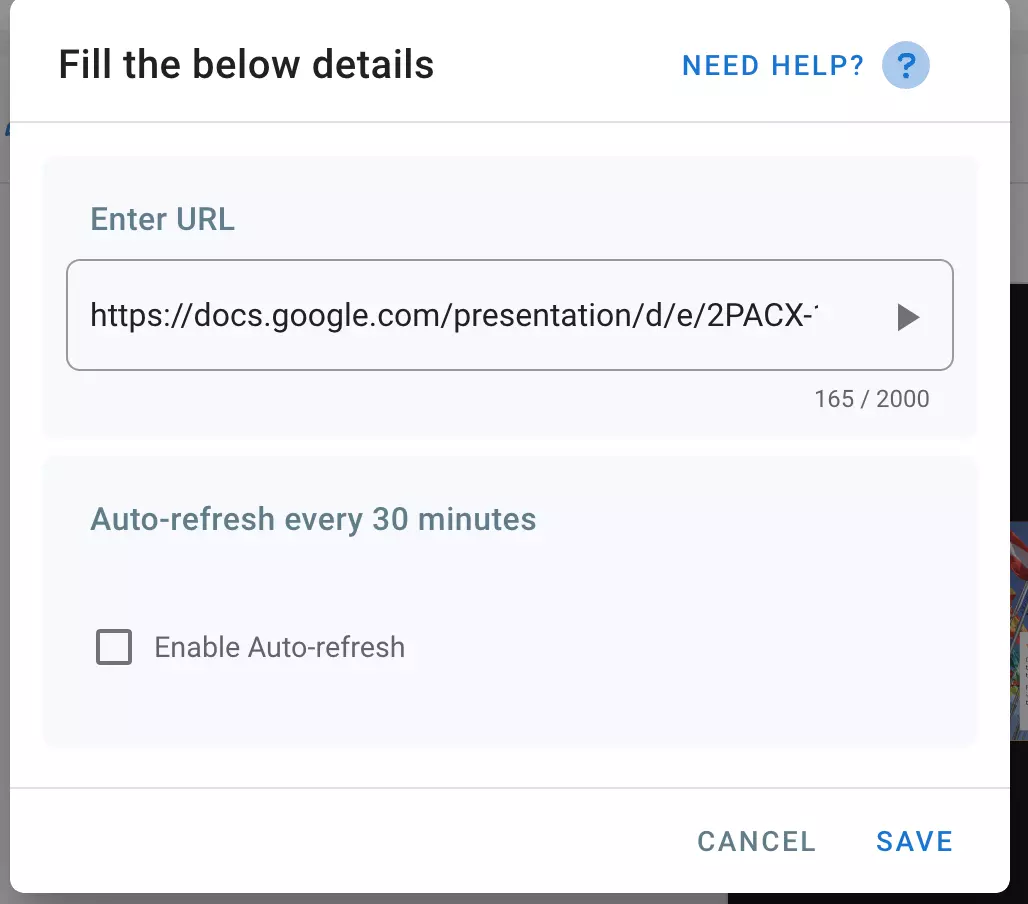
Paste the link you just copied.
-
Click on Save.
Auto Update
Published Google Slides do not receive automatic updates. If you want your changes to be refrect on screens, you need to enable the auto-refresh function for your Google Slide. This will reload your slide every 30 minutes and ensure that your slide is up to date.