User Management
Users
Learn how to easily add users to your digital signage account, manage access, and collaborate seamlessly with our step-by-step guide.
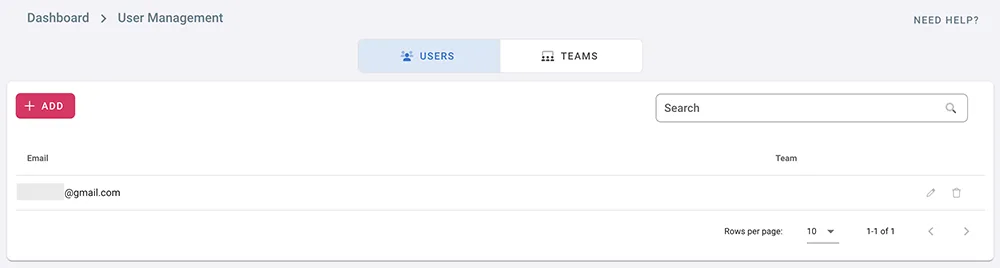
- Click on the profile icon on the top right corner
- Click on User Management
- The first user is the account owner. It can not be removed
- To add other users to manage your account click on Add
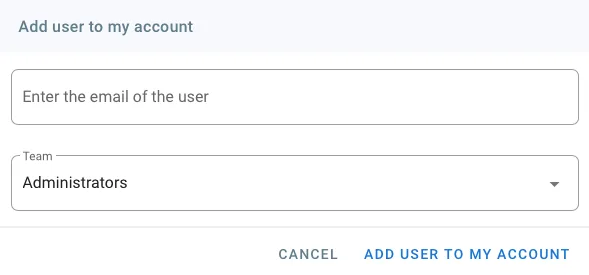
- Type in the email of the user you would like to add
- Choose a team for the user from the Team drop down list
- Click on ADD USER TO MY ACCOUNT
- The added user can sign in to the management console and manage your account according to the access levels granted to the team he belongs to
- Click on delete to remove a user from your account
Sub-users can now sign in to the console using their email, and they can switch to manage your account by following the below steps
- Open the digital signage management console
- Login to your account
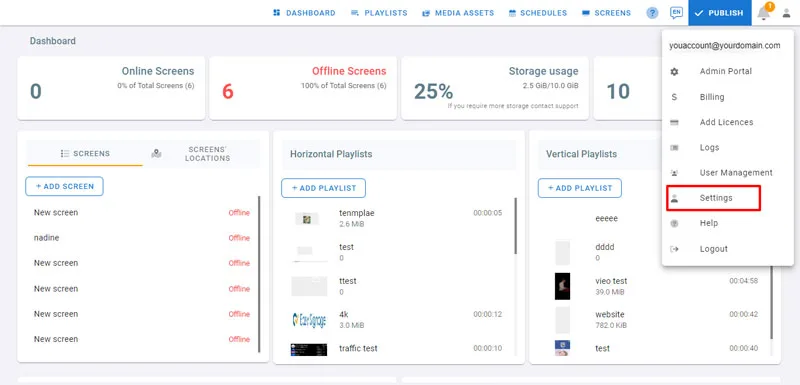
- Click on the profile icon in the top right corner
- You can see that you are logged in with your account
- Click on Settings
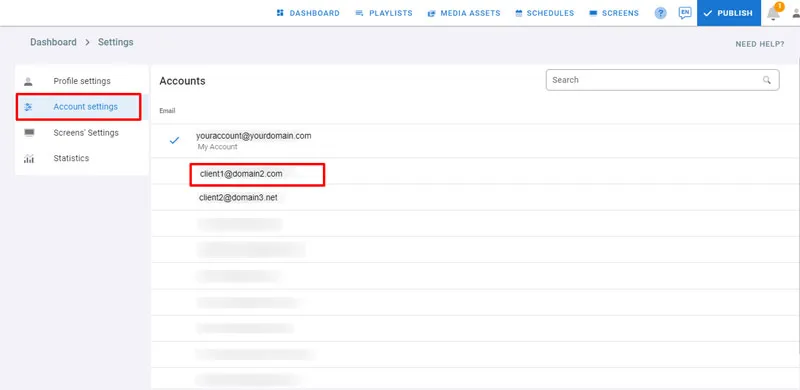
- Click on Account Settings
- The account you are currently managing has a blue checkmark
- Click on the account you want to switch to
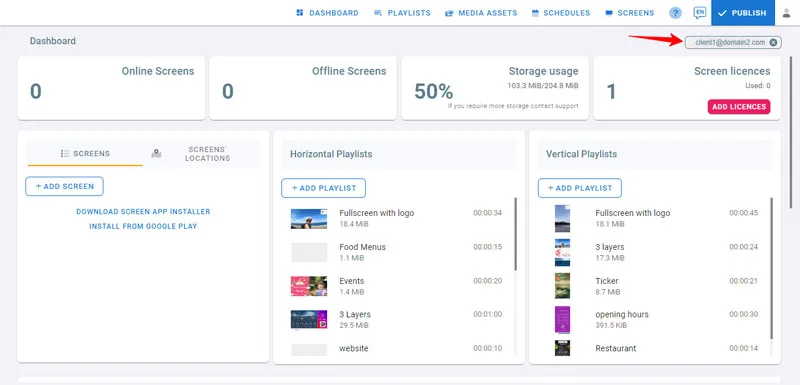
- After the account is switched, you can see in the top right corner, below the navigation bar, the account you are switched to.
- To close it and return to your account, click on the X button