Screens
Extend Storage
Learn how to extend storage on your digital signage screens with sonopto.signage. Step-by-step guide to optimize storage and enhance screen performance!
An external SD Card can be used to extend the internal storage of a screen to store apps, files and media for large digital signage playlists.
This feature can be used on screens with Android 8.0 and above that have an SD Card slot.
On your screen, open Settings:
To open Settings:
- Remote control: Press on Menu or Settings or long press for 3 seconds on arrow down
- Keyboard: Alt+M or F5
- Touch Screen: Long Press on the top left corner
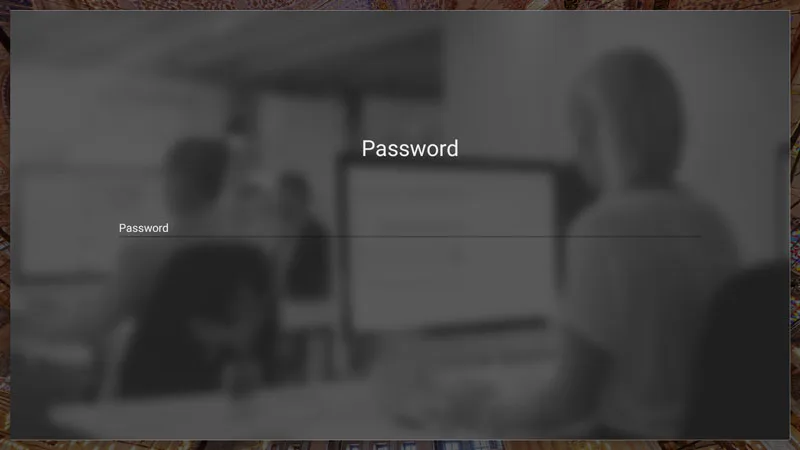
- Enter the screen’s password and hit Enter
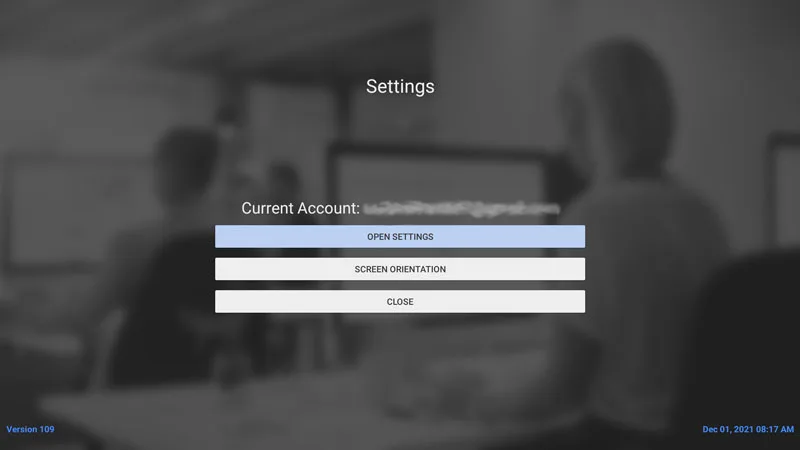
- Press on Open Settings
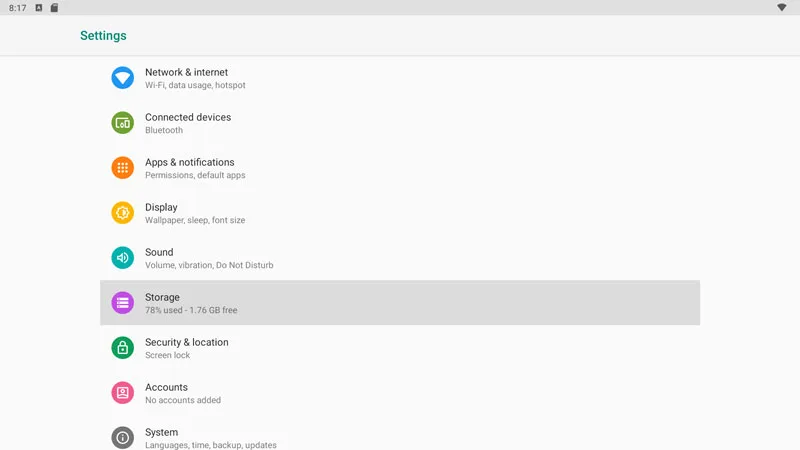
- Press on Storage
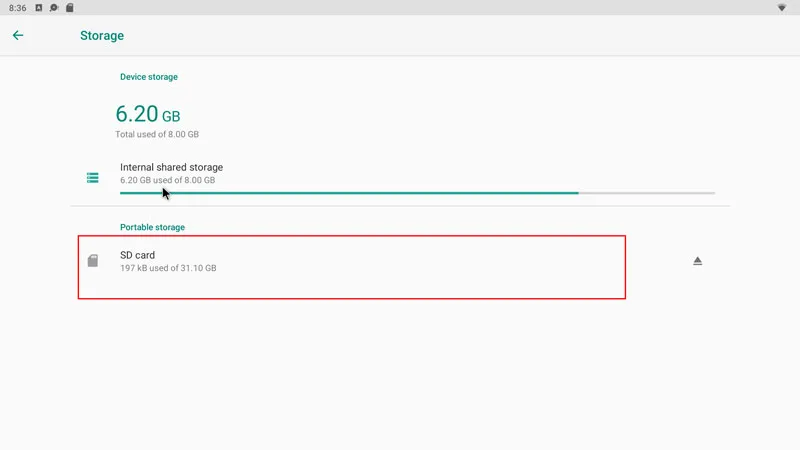
-
Make sur eyour SD Card is inserted, it might show as incomaptible, if so, press on it to format it
-
Otherwise, by pressing on it it will open and you can view the files
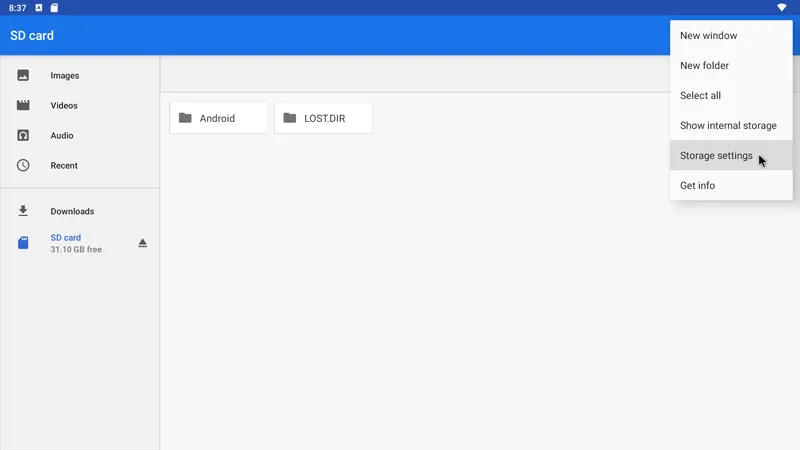
- Go to the three dots menu on the top right and press on it
- Press on Storage Settings
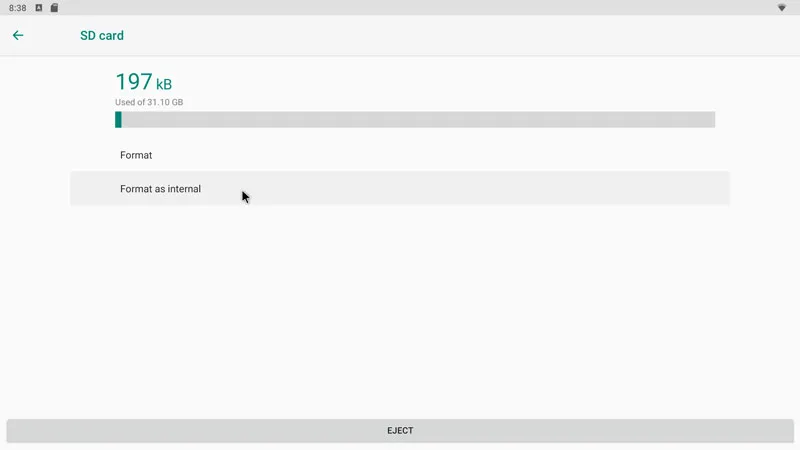
- Press on Format as Internal
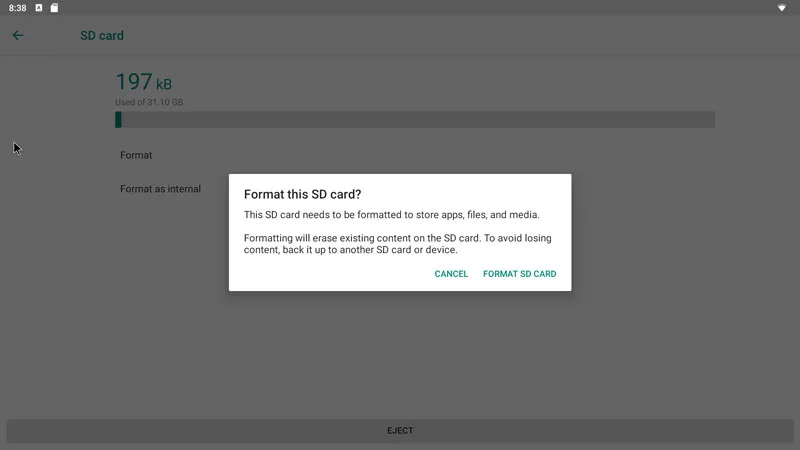
- Note that the SD CARD content will be totally erased
- Press on Format SD CARD
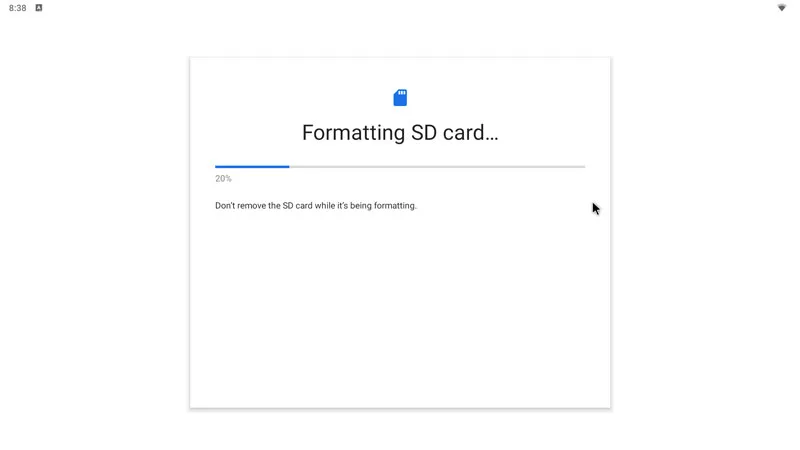
- Wait for the format to finish, do not eject it or turn of your screen while formatting
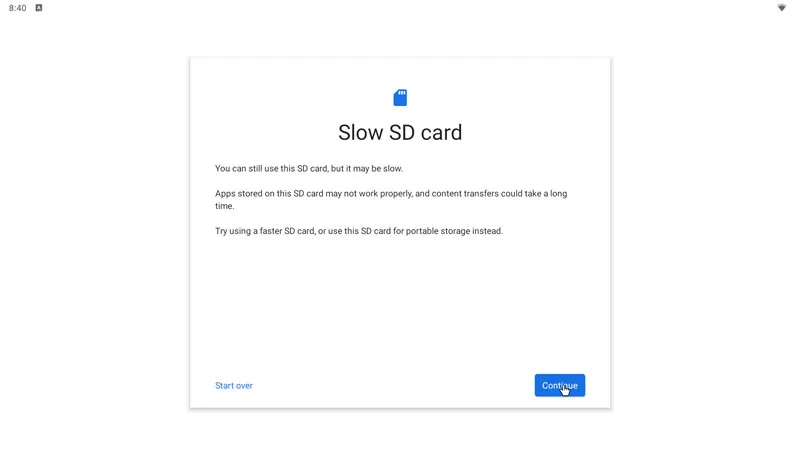
- Press on Continue
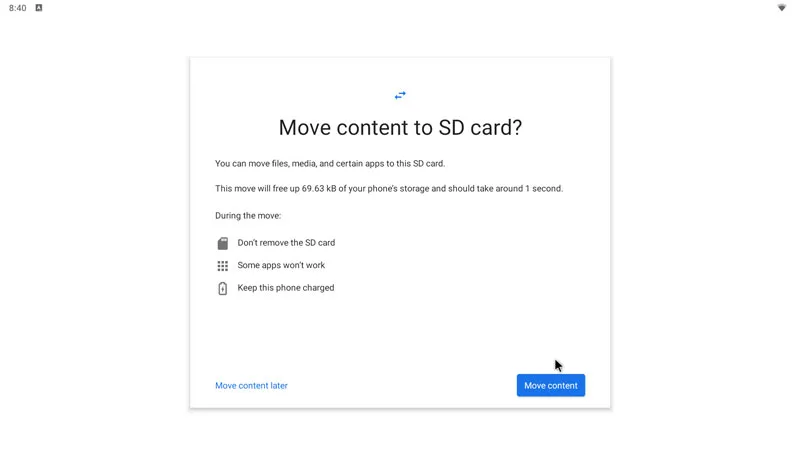
- Press on Move Content
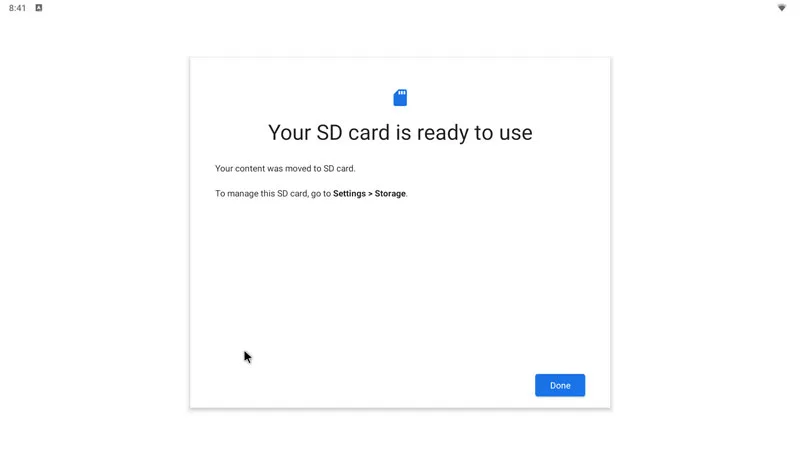
- Press on Done
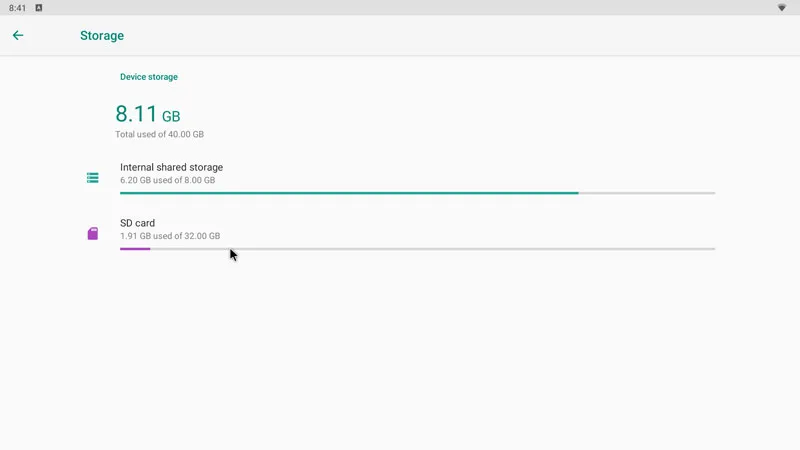
- Your SD Card will show as an internal SD Card that can be used to extend your digital signage media storage
View your storage
- Go to the management console
- Click on Screens
- Click on the settings of your screen
- Click on your screen details
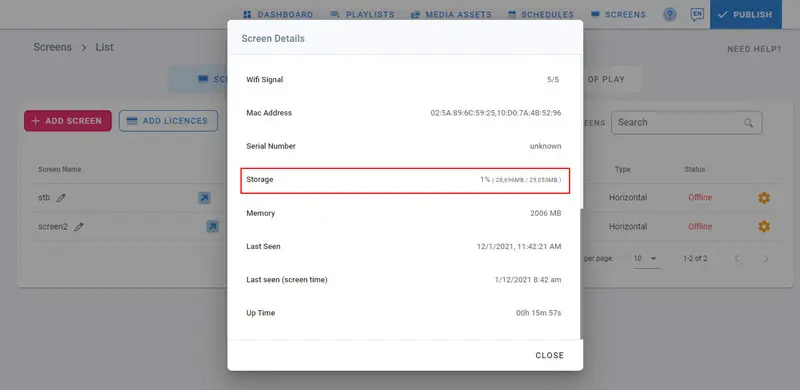
- Check if the total storage shows your newly extended storage