Installation
Install Digital Signage on ChromeOS Player
How to set up Digital Signage Player on ChromeOS with Chrome
How to Install Digital Signage Player on Chrome OS
Introduction
This document provides a step-by-step tutorial on how to install Digital Signage Player on a Chrome OS device using Kiosk & Signage License from Google Workspace. This process ensures that digital signage runs in kiosk mode, providing a seamless and secure digital signage solution.
Prerequisites
- Chrome OS Device: Ensure your Chrome OS device is powered on and connected to the internet.
- Google Workspace Account: You need admin access to Google Workspace to manage devices.
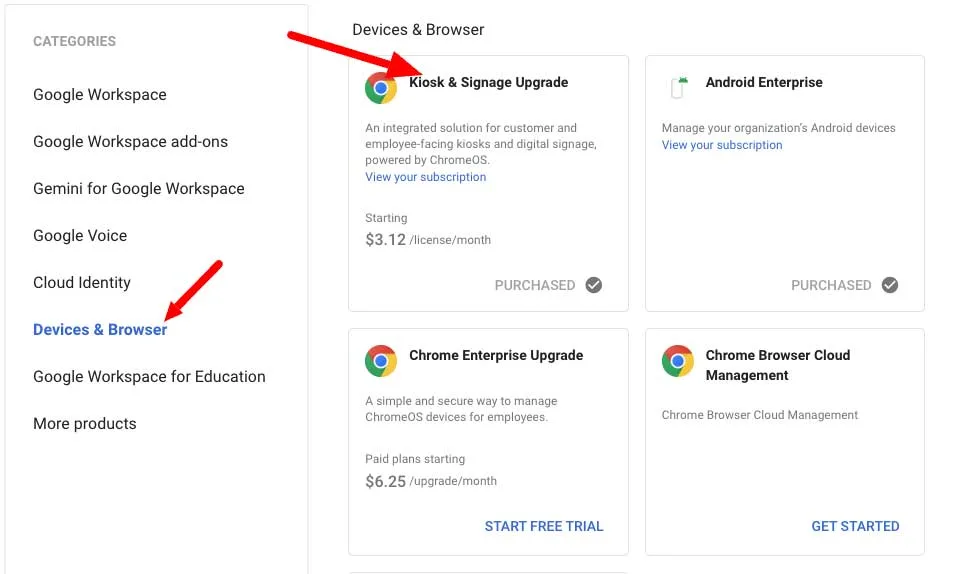
- Kiosk & Signage License: Ensure you have the Kiosk & Signage License assigned to your Chrome OS device.
Step-by-Step Installation Guide
Step 1: Sign in to Google Admin Console
- Open your browser and go to Google Admin Console.
- Sign in with your Google Workspace admin credentials.
Step 2: Enroll Chrome OS Device
- Factory reset your Chromebox if it was previously used as a personal device.
- Sign out of your Chromebook.
- Press and hold Ctrl + Alt + Shift + r.
- Connect your Chromebox to the screen and make sure it has a stable internet connection.
- Select Get Started
- On the “who is using this Chromebox” page - Select enterprise enrollment in the bottom left corner of the screen
- Enter your Google Enterprise account details to log in, and then select ‘done’.
- The device will then restart. After restarting, you will be prompted to sign in to your chromebox using the same login credentials as your Google Enterprise account.
- Select accept and continue
For more information see the Google help guide here - https://support.google.com/chrome/a/answer/1360534
Step 3: Assign Kiosk & Signage License
- In the Google Admin Console, navigate to Devices > Chrome > Devices.
- Find and select the device you want to set up.
- Click on the device name to open its settings.
- Under Licenses, ensure that the Kiosk & Signage License is assigned.
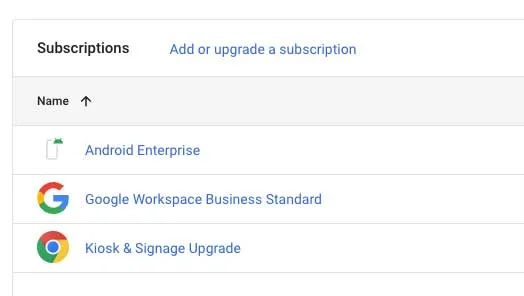
- If you dont have active Kiosk & Signage licences, go to subscription and add licences
Step 4: Configure Device Settings for Kiosk Mode
-
In the Google Admin Console, navigate to Devices > Chrome > Apps & extensions > Kiosks.
-
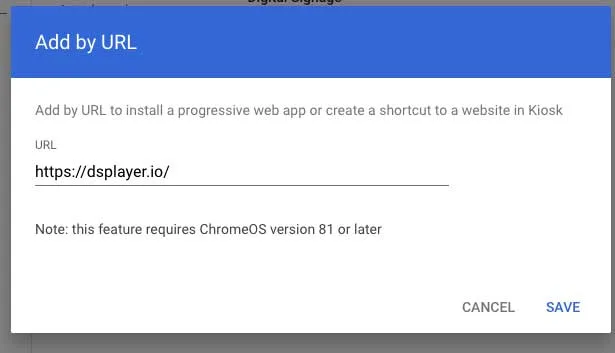
Click on Add and then add by URL
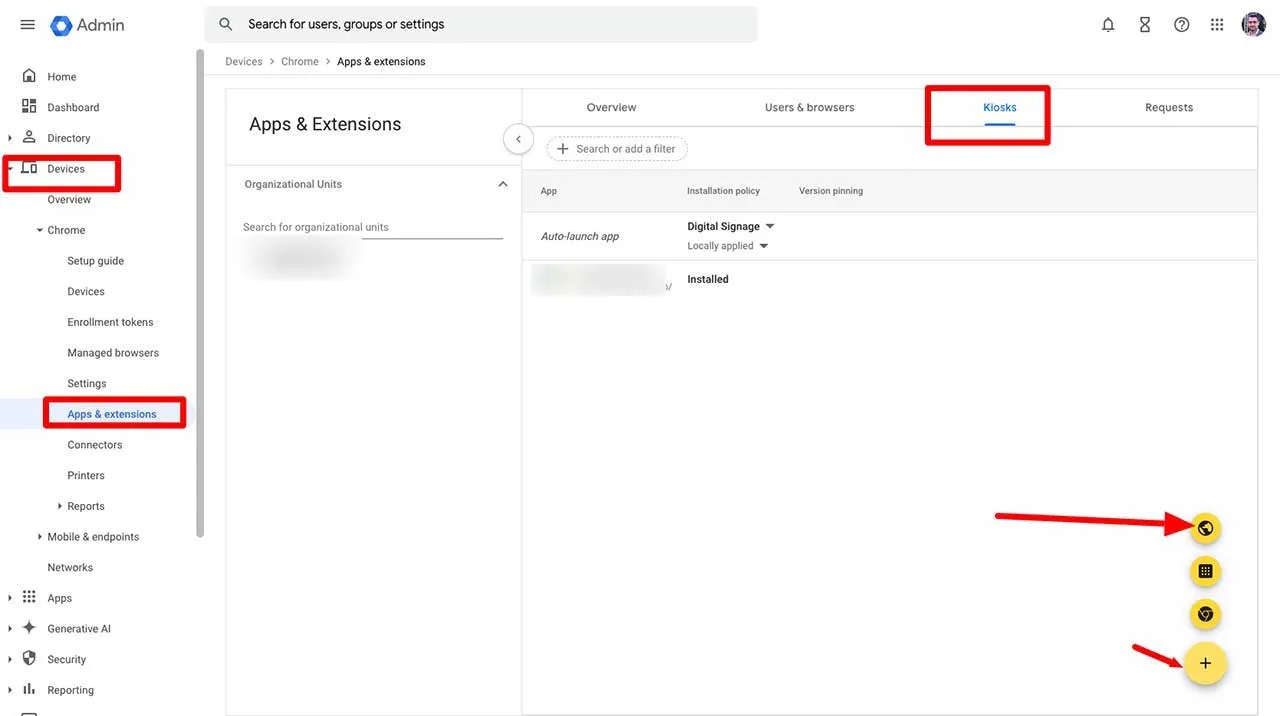
- Use the
https://dsplayer.ioin the URL as below, then click Save
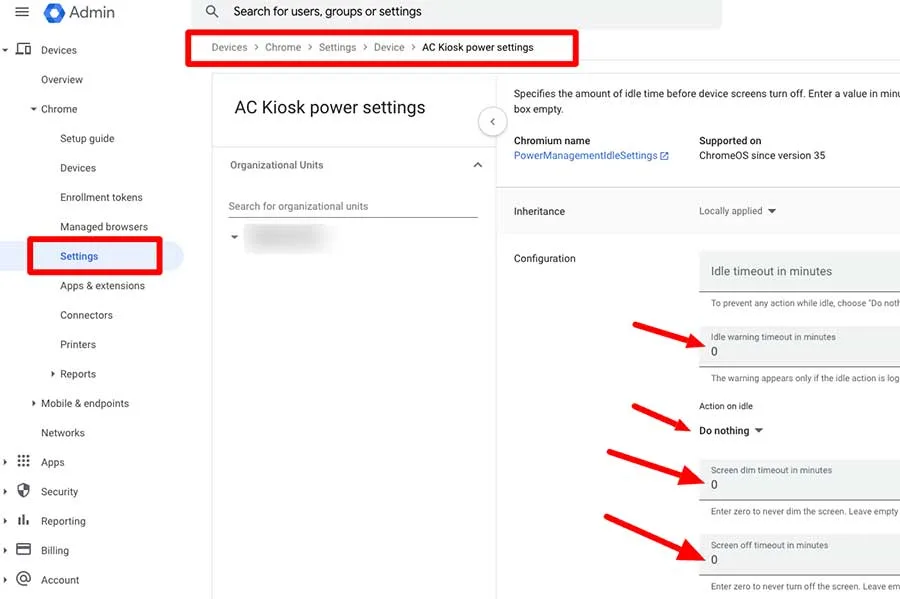
- Set AC Kiosk power settings to never sleep